The Layouts section (under Customization) is your white-label control
center — the place where PokerEngine stops looking like “PokerEngine” and starts looking like your
brand. This is the heart of the CMS: themes, logo and fonts, a fully custom login page, your own navigation menus
and footer, promo banners, and your social/SEO preview.
Everything here applies live — save a change and it shows on the next page load, no server
restart needed. And it all ships ready to use: sensible defaults are set out of the box, so
Layouts is purely about making the platform yours, never about getting it to work. It’s organized into
six tabs.
Themes
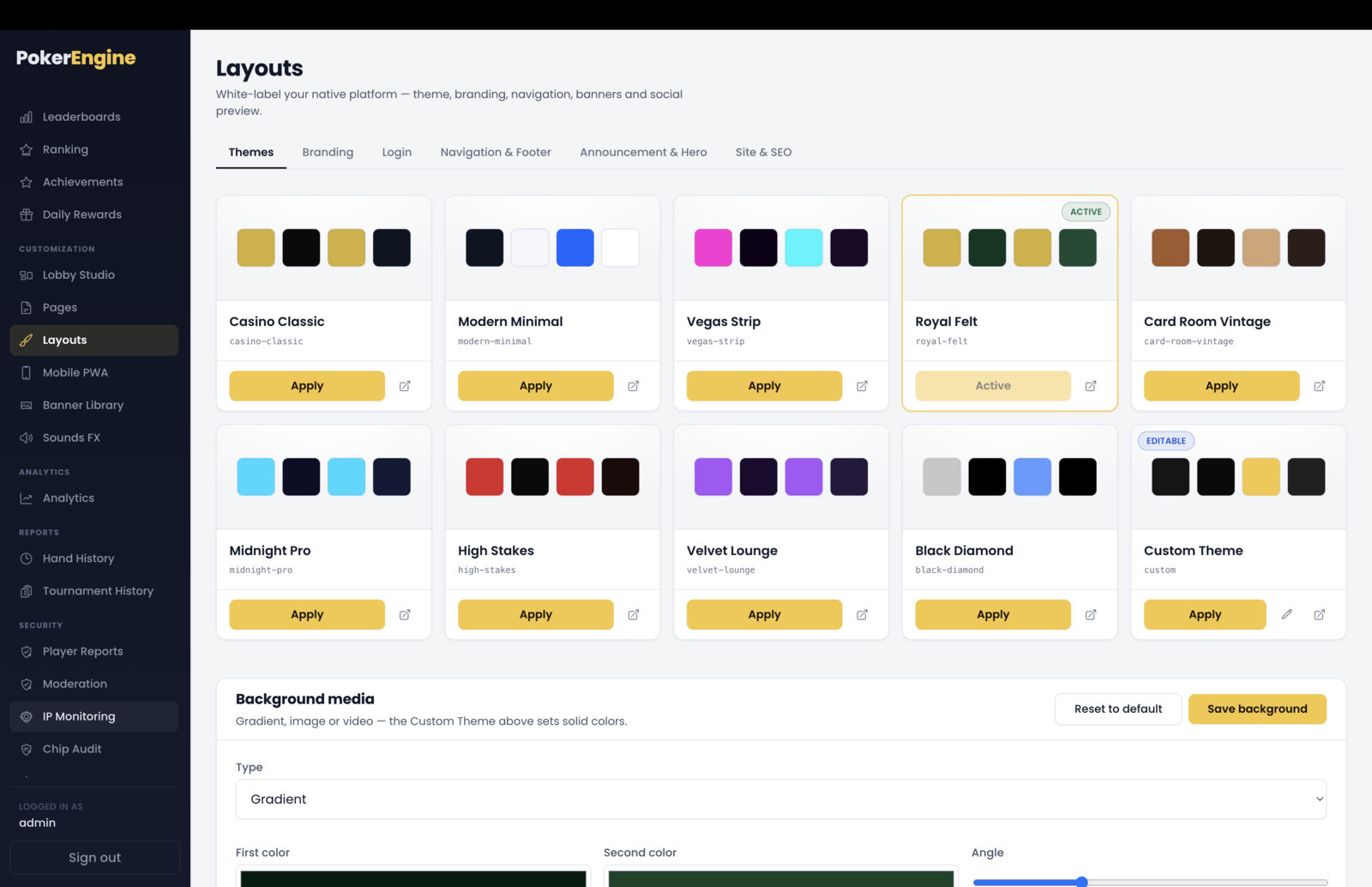
Sets your platform’s overall look. Pick from 9 built-in themes, each a polished color scheme:
Casino Classic, Modern Minimal, Vegas Strip, Royal
Felt, Card Room Vintage, Midnight Pro, High Stakes,
Velvet Lounge and Black Diamond. Click Apply on a theme tile to
make it active (you can Preview first in a new tab).
Themes — pick from nine polished built-in schemes (Apply / Preview), or open the Custom Theme editor for full control.
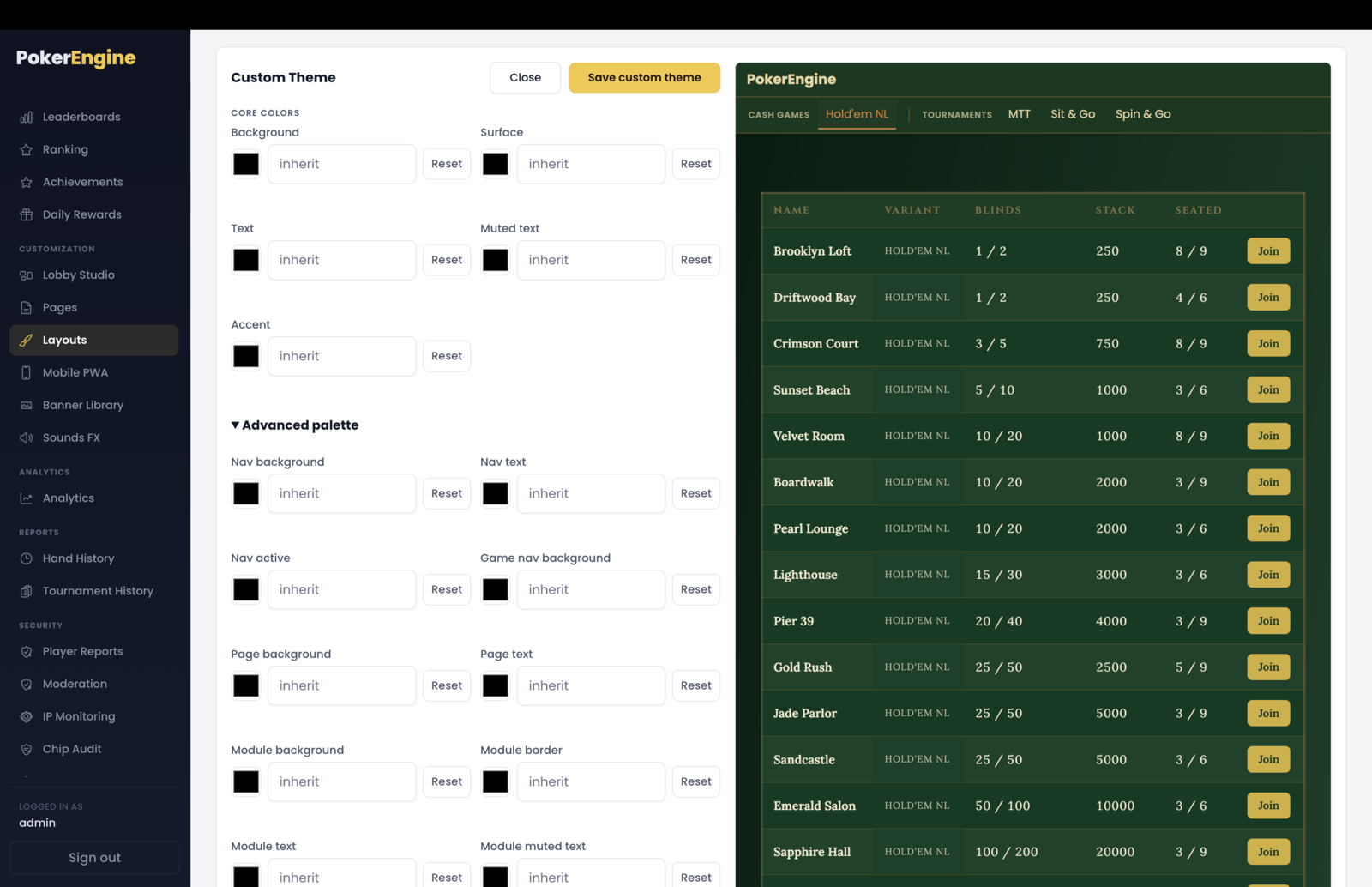
Prefer full control? The Custom Theme tile opens a visual editor where you set your own
core colors (background, surface, text, muted text, accent) and fine-tune the advanced
palette for individual elements (navigation, game navigation, page, and modules), with a big live preview
as you go. You can even hide certain elements you don’t want.
Custom Theme — set your own core colors and per-element palette with a big live preview, then Apply the Custom Theme tile.
Below the gallery, the Background panel sets the platform backdrop — a solid color, a gradient,
an uploaded image, or a looping video — with an optional darkening overlay to
keep text readable. (Background media applies when you’re using the Custom Theme.)
Themes connect to your lobby
Applying a theme updates your primary lobby (the one you created in Lobby
Studio). If you haven’t set up a lobby yet, do that first.
Branding
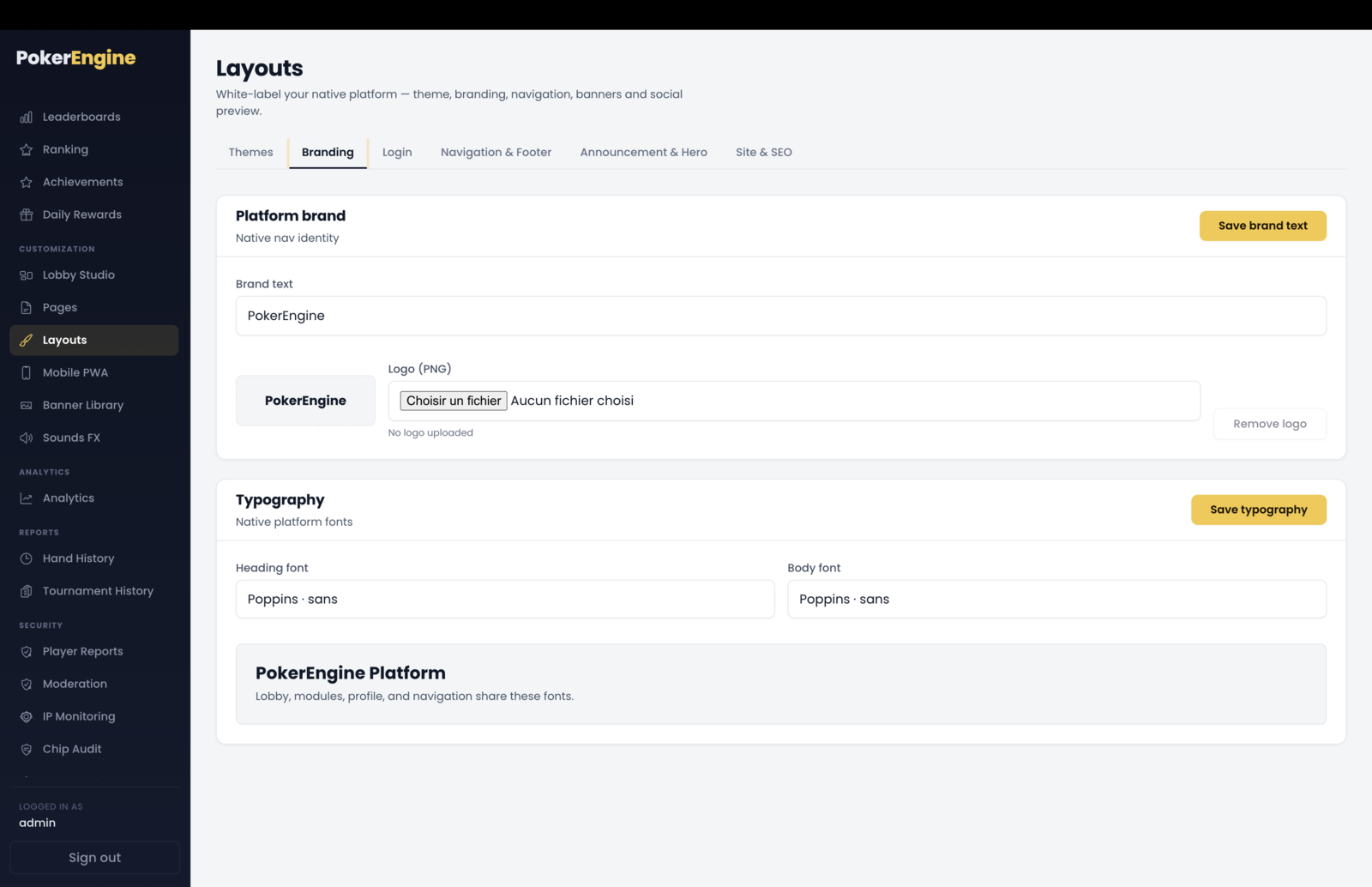
Your platform identity in the top bar:
Brand text — the wordmark shown when you don’t use a logo image.
Logo — upload your logo (PNG, up to 500 KB). Remove it anytime to fall back to the brand text.
Typography — choose the heading and body fonts from a curated set (Poppins, Inter, Montserrat, Roboto, Lora, Playfair Display, Merriweather), with a live preview.
(The favicon lives in the Site & SEO tab.)
Branding — set your wordmark or logo and pick heading/body fonts, all with a live preview.
Login
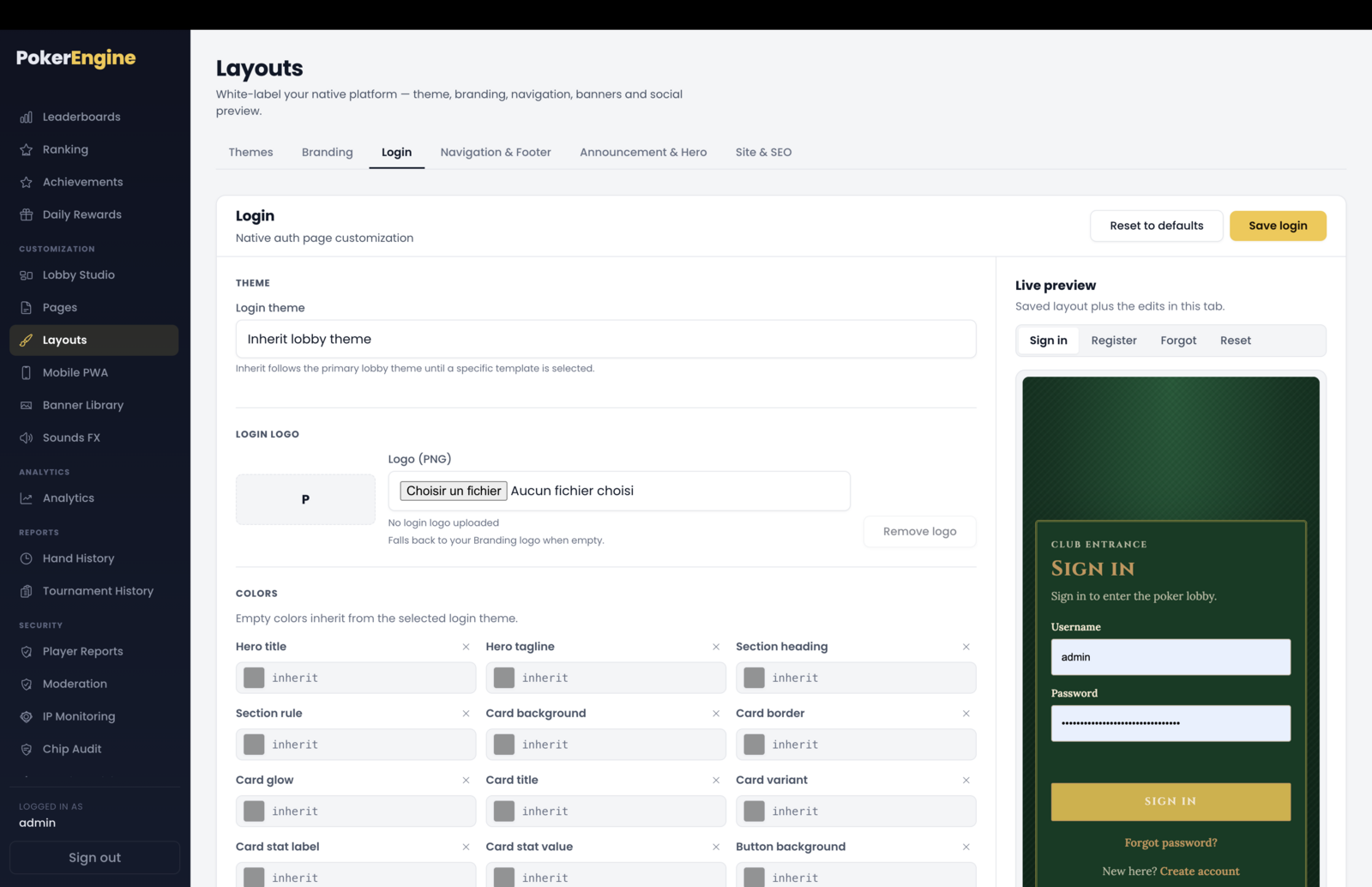
Fully customize the page players see when they sign in or register — often the very first impression of your
brand. With a live preview (sign-in, register, forgot-password and reset views), you can set:
A theme for the auth page (or inherit your lobby theme) and a dedicated login logo.
Colors for every element (titles, cards, buttons, footer…).
Show/hide page elements (marketing panel, ornaments, footer note, and more).
All the text — every headline, label, button and link can be reworded to match your voice, in your language.
A Reset to defaults button restores everything if you want to start over.
Login — theme, logo, per-element colors, show/hide toggles and every piece of text, with a live sign-in / register / forgot / reset preview.
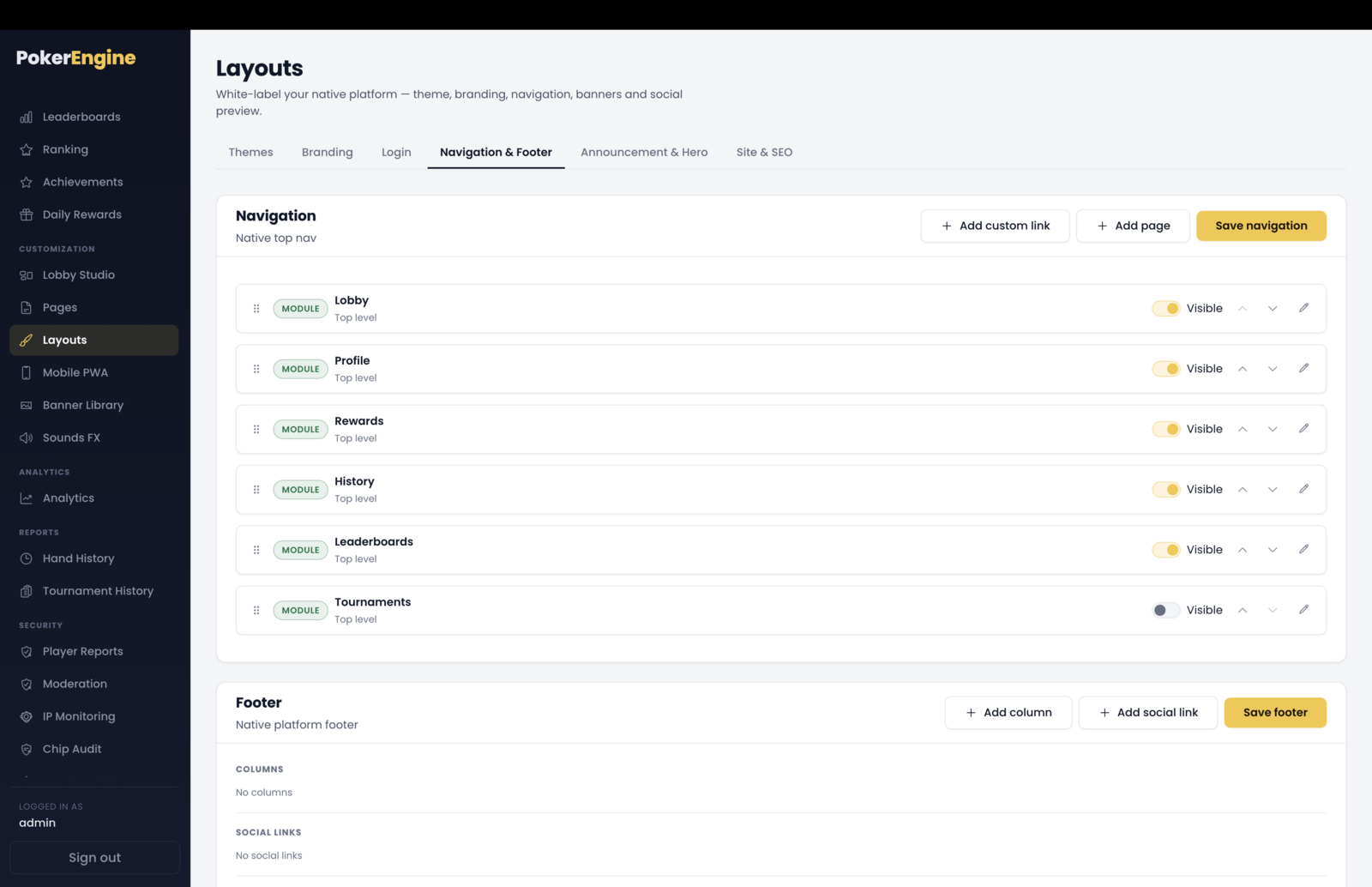
Navigation & Footer — build your own menus
This is the CMS centerpiece: you decide what’s in your menus.
The navigation builder
Build your top navigation from three kinds of items:
Module — a built-in platform area (Lobby, Profile, History, Rewards, Leaderboards, Tournaments).
Page — a CMS page you created in the Pages section (only published pages appear in the picker).
Link — any custom URL, opening in the same tab or a new one.
You add items with Add page / Add custom link, then reorder
them (drag-and-drop or up/down), rename them, show/hide them with a toggle, and
even nest items into dropdown menus (up to 8 sub-items under a parent). It works
exactly like building a menu in a website CMS — no code.
Navigation builder — mix Module, Page and Link items, reorder and nest them into dropdowns, and toggle visibility.
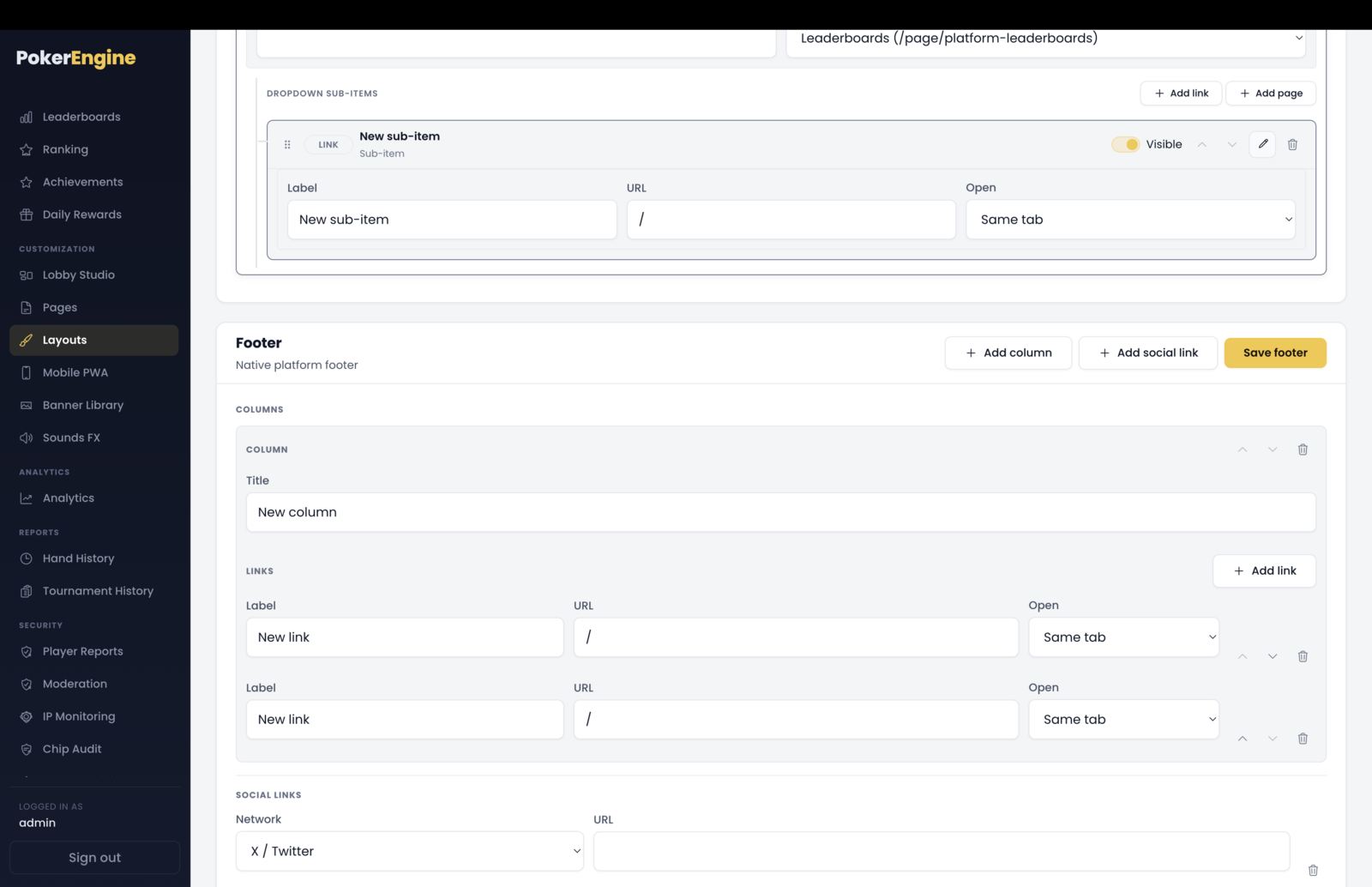
The footer builder
Below the nav, build your footer: add up to four columns of titled links, a row of
social icons (X/Twitter, Facebook, Instagram, YouTube, TikTok, Discord, Telegram, Twitch,
LinkedIn), and a copyright line (you can use {siteName} and {year}
placeholders).
Footer builder — up to four link columns, a row of social icons, and a copyright line with placeholders.
Pages → Menus is a two-step flow
You create and publish a page in the Pages section, then add it to your
navigation here. The “Add page” button stays disabled until you have at least one published
page. This Pages-authors-content, Layouts-wires-it-together split is exactly what makes PokerEngine feel like a CMS.
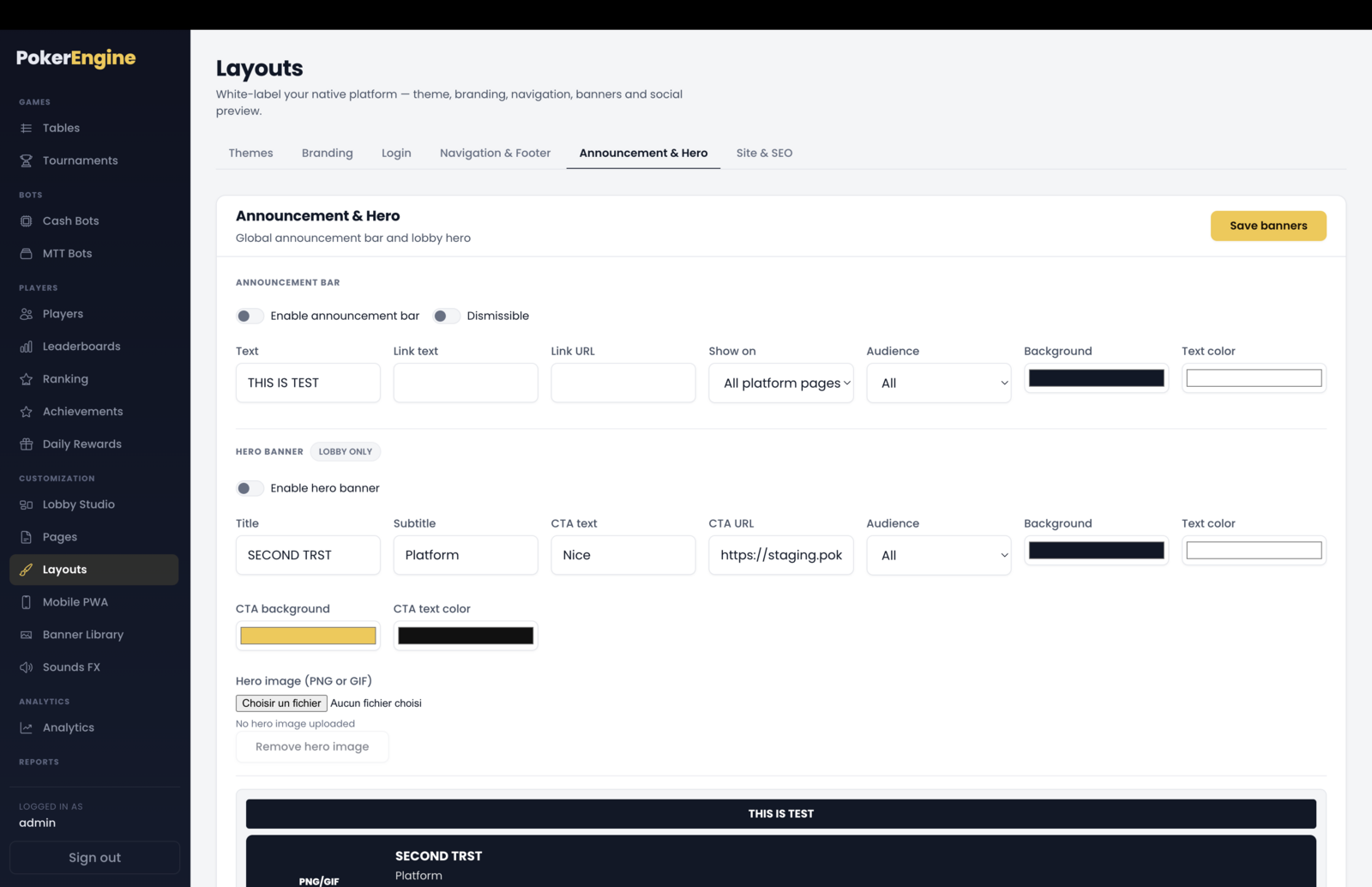
Announcement & Hero
Two optional promo blocks, with a combined live preview:
Announcement bar — a slim message strip across the top (optionally dismissible), with an optional link. Choose where it shows (all pages or lobby only) and who sees it (everyone, guests only, or logged-in players only).
Hero banner — a bold headline block on your lobby with a title, subtitle, image, and a call-to-action button, with full color control.
Both are off by default — turn them on when you have something to promote.
Announcement & Hero — two optional promo blocks (a top strip and a lobby hero) with a combined live preview.
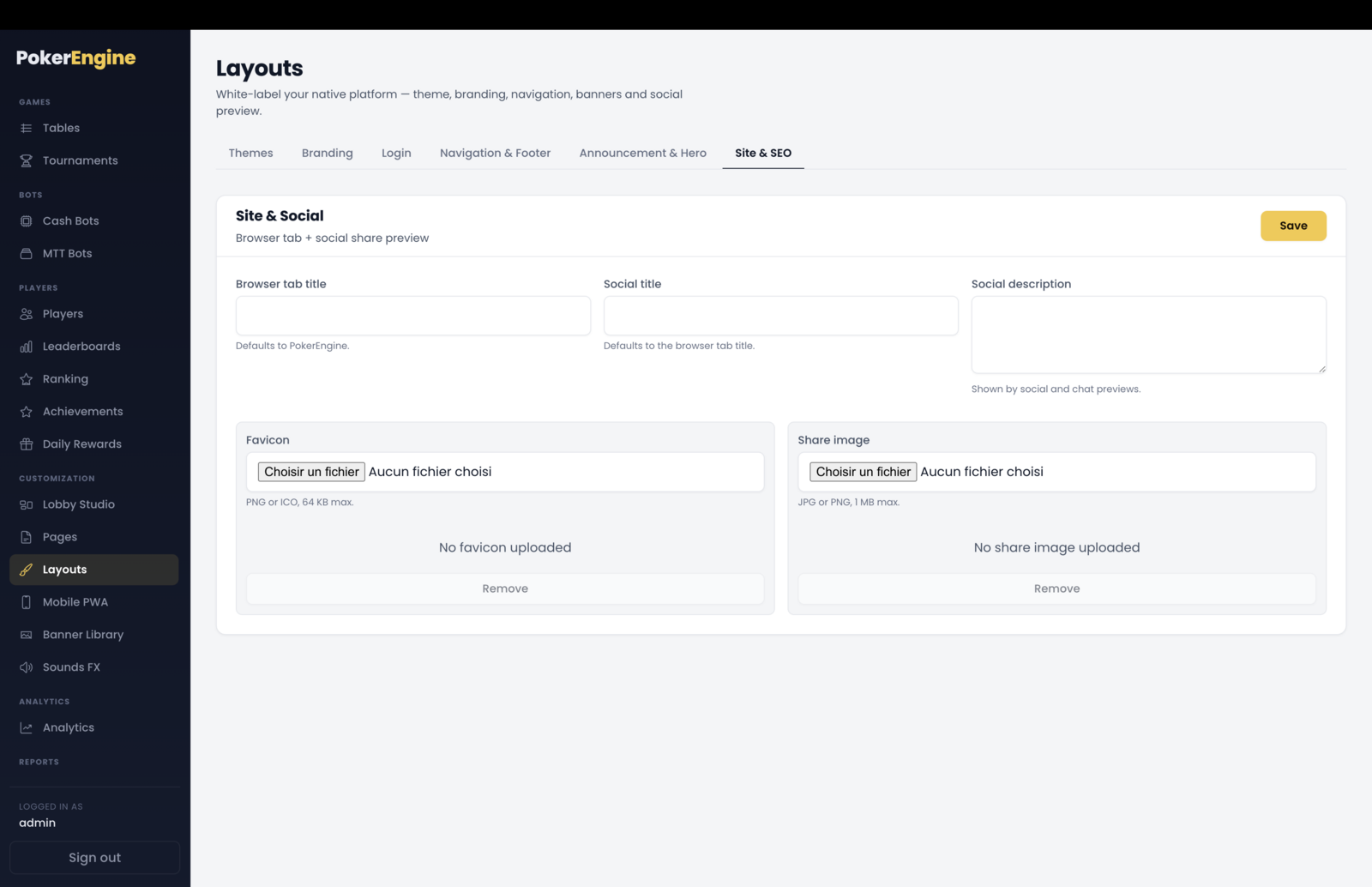
Site & SEO
Controls how your platform looks in the browser and when shared:
Browser tab title — the text in the browser tab (defaults to your brand).
Social title & description — how a link to your site looks when shared on social media or chat.
Share image — the preview image shown with that share.
Favicon — the little icon in the browser tab.
Site & SEO — the browser tab title, social share title/description, favicon and share image.
Good to know
Themes connect to your lobby. Applying a theme updates your primary lobby (created in Lobby Studio), so set up a lobby first if you haven’t.
Pages → Menus is a two-step flow. Publish a page in Pages, then add it to your navigation here — the “Add page” button is disabled until you have at least one published page.
Set your brand once and let it cascade. The login logo falls back to your branding logo, and the browser tab / social titles fall back to your brand text — so you can fill in the essentials and let the rest inherit.
It all works standalone. Everything Layouts styles is your own native platform. (If you also run a separate external site, optional embed snippets exist — but you never need them to use PokerEngine.)