The Mobile PWA section (under Customization) shapes the installed
mobile app experience. PokerEngine is a Progressive Web App (PWA), which means players can
install it to their phone’s home screen and use it like a native app — with your icon, your name
and your colors. This section is where you set that up, plus the mobile navigation players use on their phones.
Like the rest of the platform, it works out of the box (default icon, default mobile menus, a
working app manifest) — this section is for making it yours. It has two tabs, sharing a live phone
preview.
PWA settings — your app’s identity
This is what players see when they install your platform to their home screen:
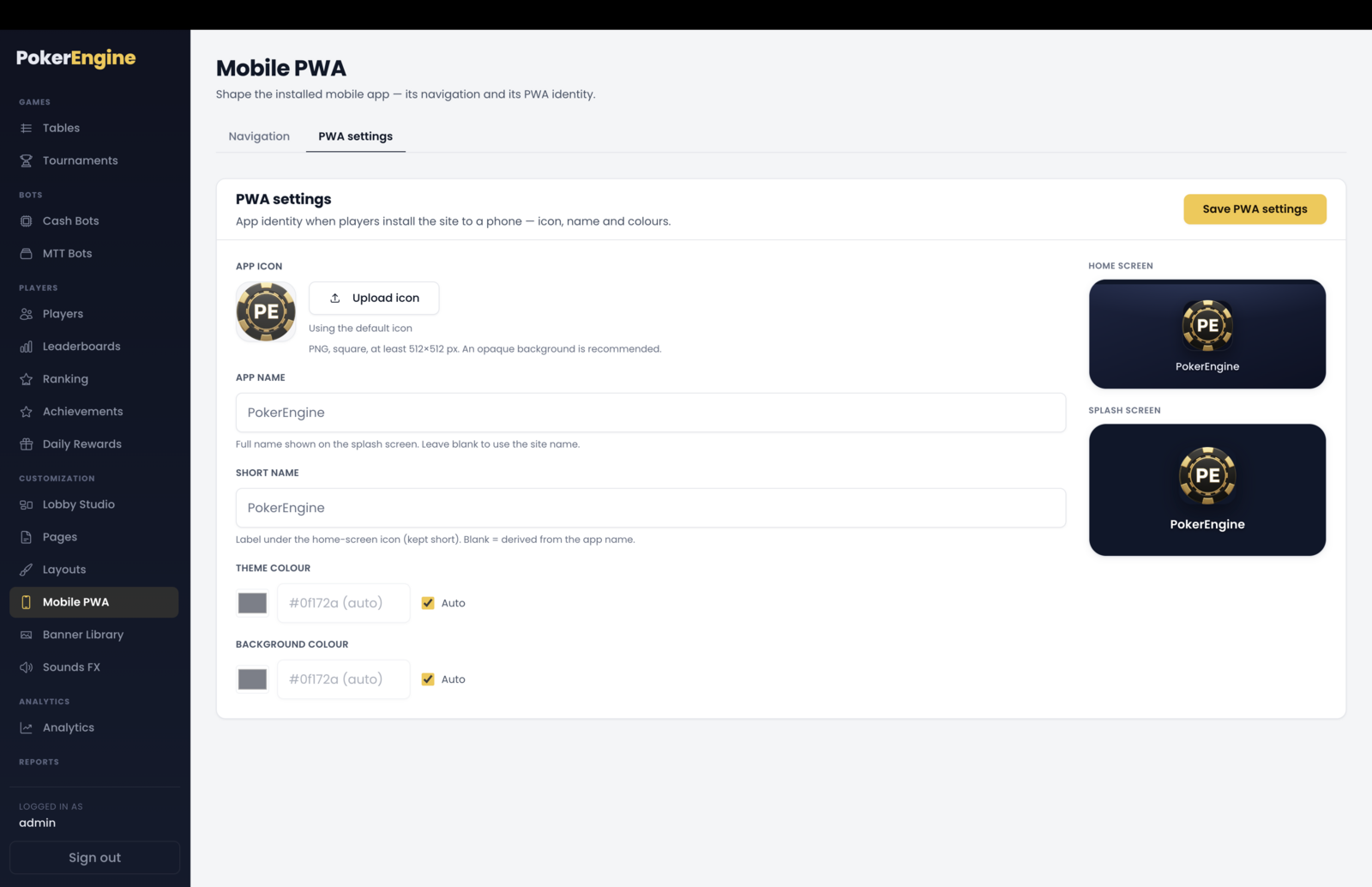
App icon — a square PNG, at least 512×512 and up to 3 MB. Ships with a default; upload yours to replace it. (Use an opaque background — it becomes the rounded home-screen icon and the splash screen.)
App name — the full name shown on the splash screen.
Short name — the short label under the home-screen icon.
Theme color — the color of the phone’s status/toolbar when your app is open.
Background color — the splash-screen background while the app loads.
Both colors have an “Auto” option that follows your site theme automatically — so if you
change your theme later, the app colors keep up. Two live mockups (home-screen tile and splash screen) show
exactly how it’ll look.
PWA settings — your installed app’s icon, name and colours, with live home-screen and splash mockups.
Navigation — the mobile menus
Phones use their own navigation, which you build here (it’s separate from your desktop menu in
Layouts, so you can tailor the mobile experience):
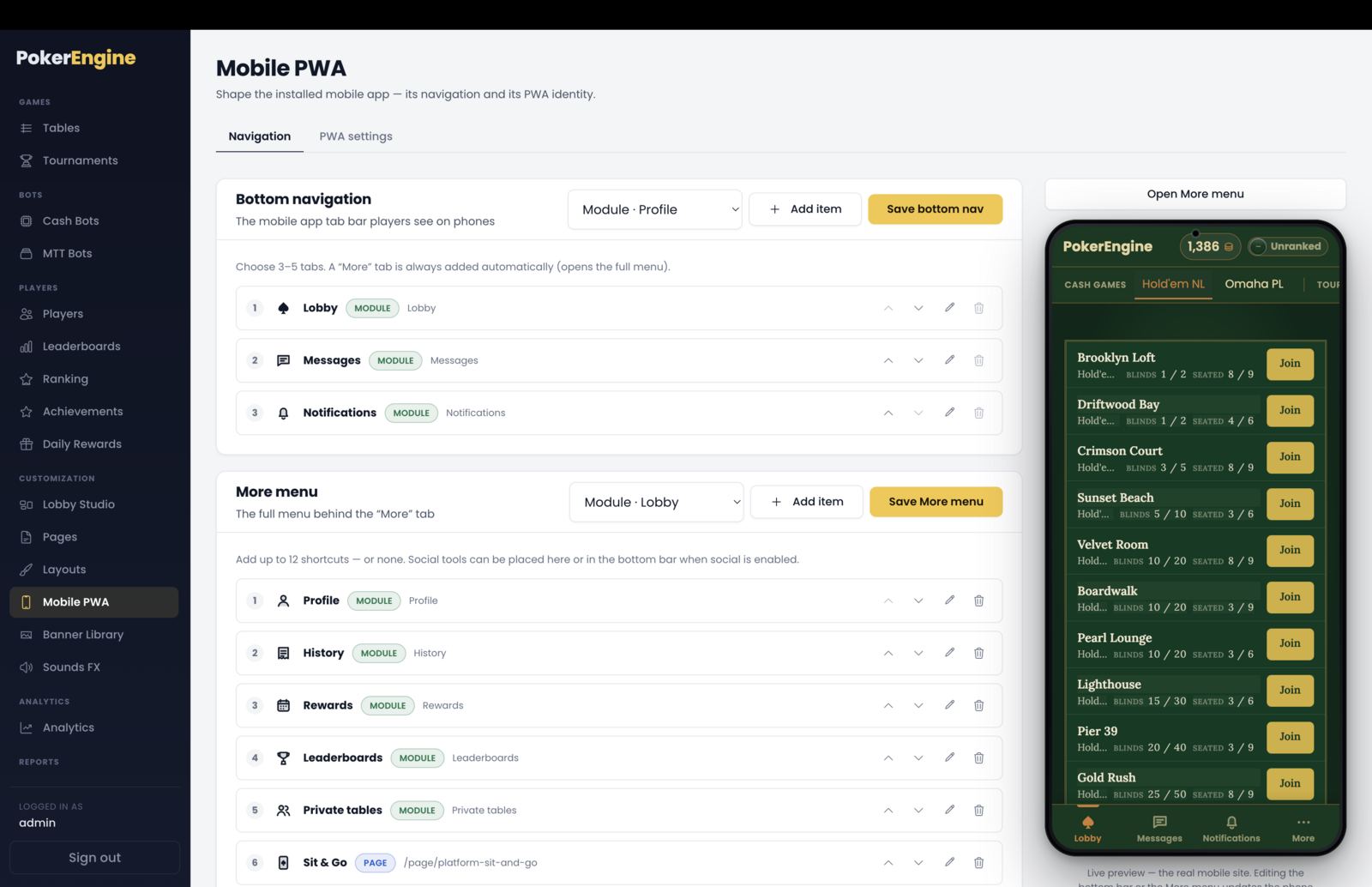
Bottom bar — the tab bar at the bottom of the screen: 3 to 5 tabs of your choice. A “More” tab is added automatically as the last one.
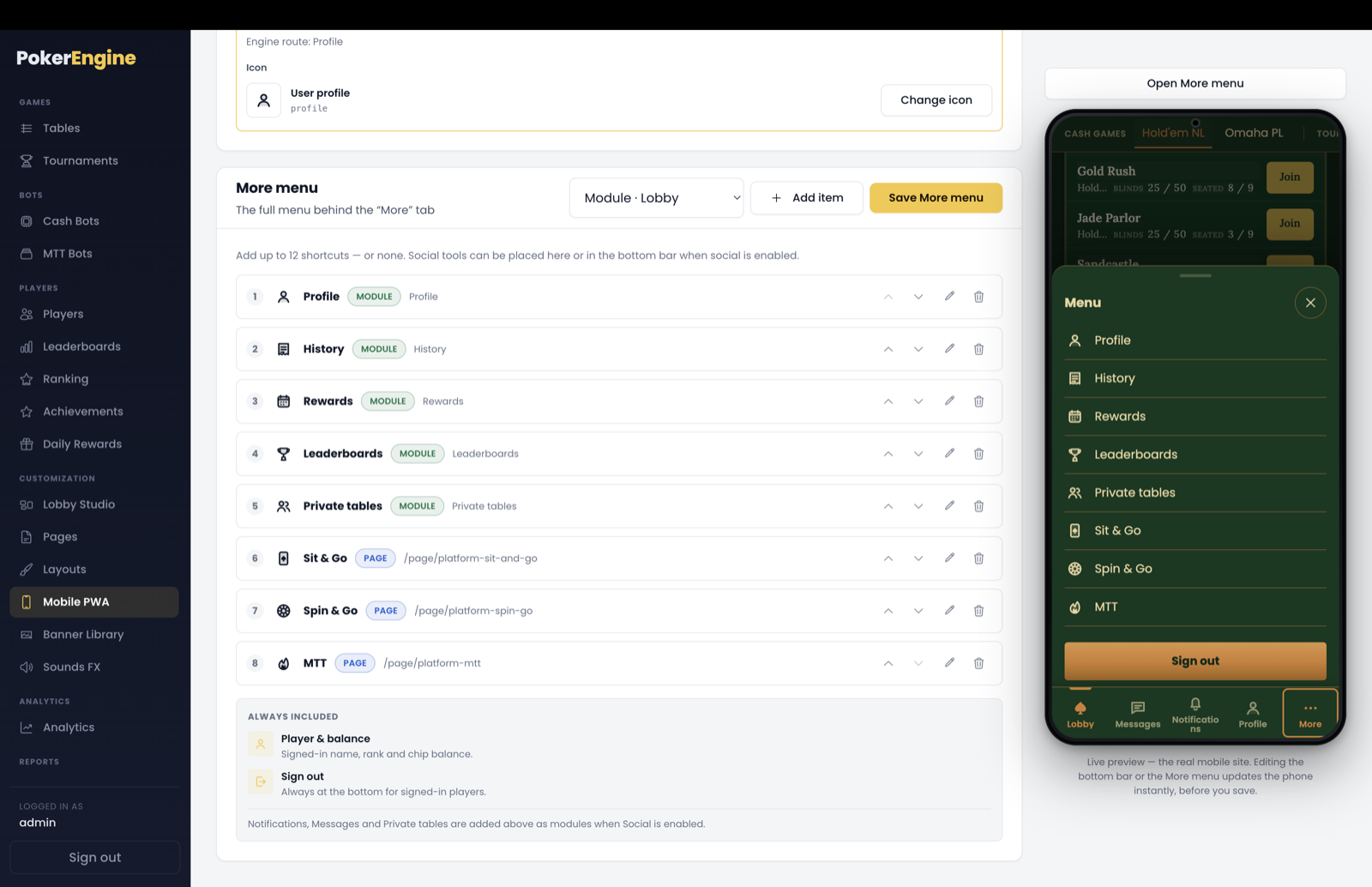
More menu — the sheet that opens from “More”: up to 12 shortcuts. It can even be left empty (players still get their identity and Sign out there).
Navigation — build the bottom bar and the More menu on the left, watch the phone preview update live on the right.The “More” menu — open the sheet in the preview to check it: your shortcuts sit above the always-included identity and Sign out.
For each item you choose:
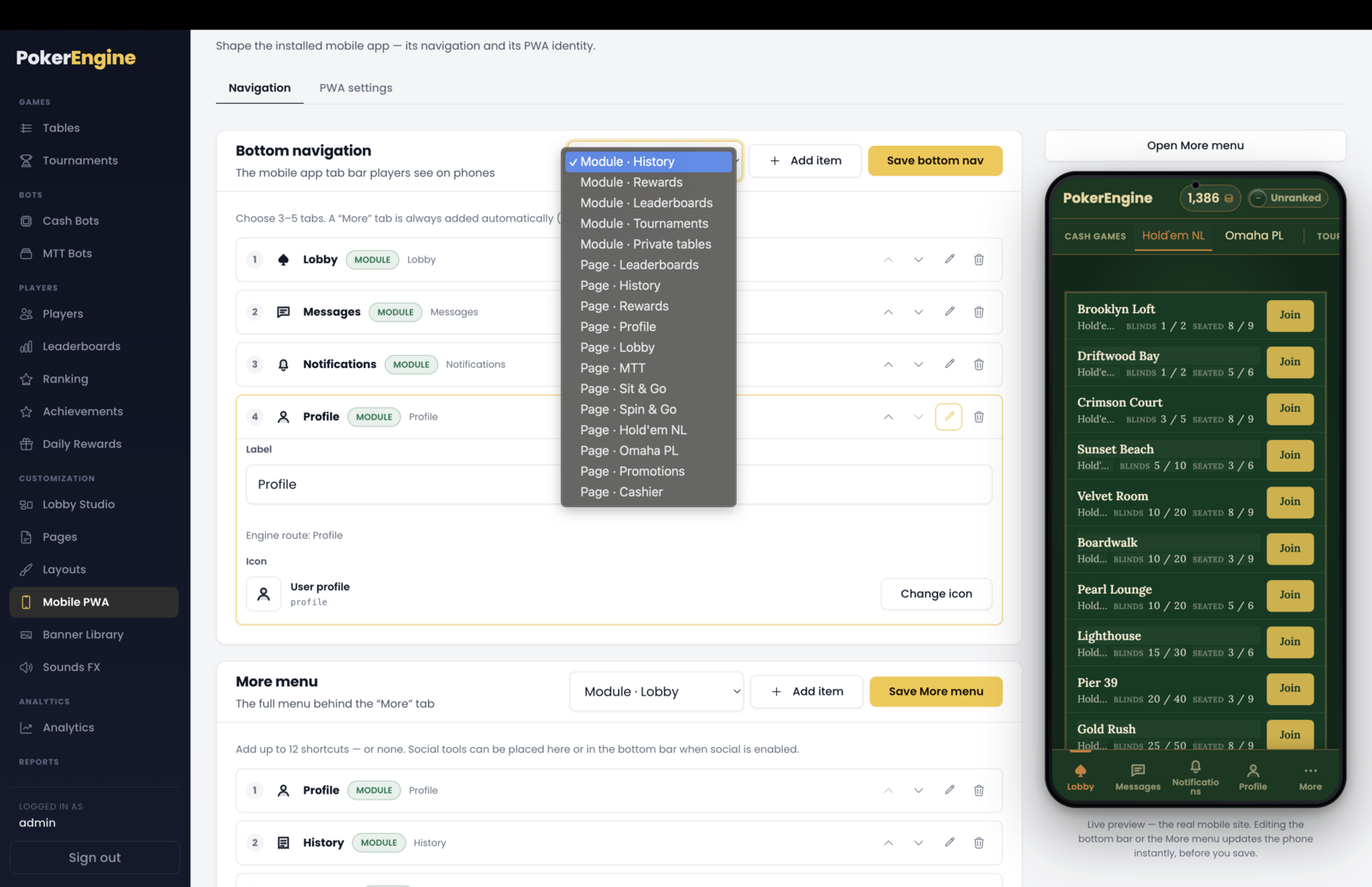
Destination — a platform area (Lobby, Profile, History, Rewards, Leaderboards, Tournaments, and — if you use Social — Notifications, Messages, Private tables) or one of your published Pages.
Label — a short name (up to 18 characters).
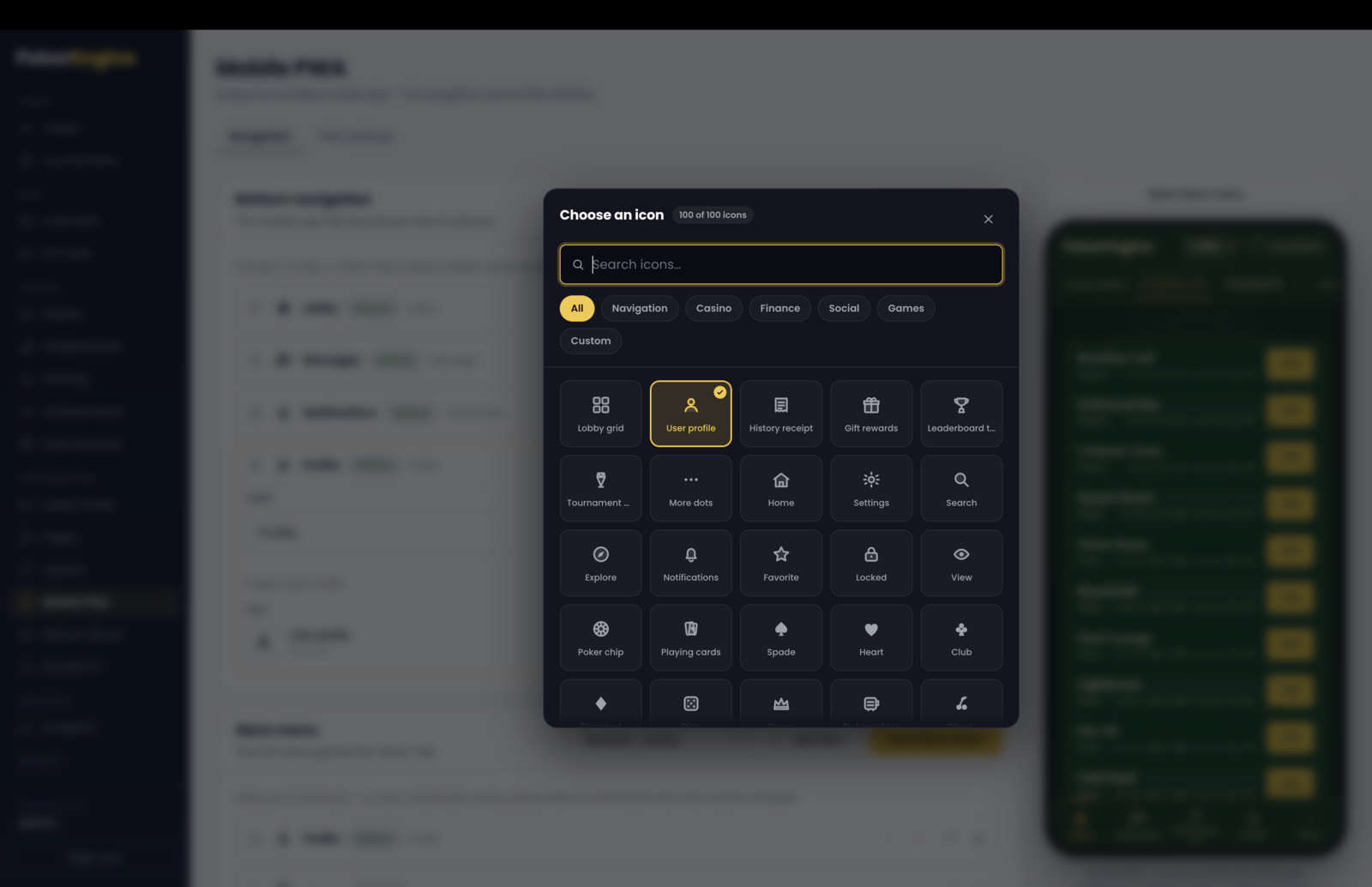
Icon — pick from a large built-in icon library, or upload your own (PNG).
Destination — point a menu item at a platform area or one of your published Pages.Icon library — choose from a large searchable set of built-in glyphs, or upload your own PNG.
Reorder items with up/down, edit or remove them, and watch the phone preview update live as you
go (you can even pop open the “More” sheet in the preview to check it).
How players install the app
Installation is handled automatically for players on mobile:
Android / Chrome — players get a one-tap Install button that triggers the phone’s native “Add to home screen” prompt.
iPhone / Safari — Apple doesn’t allow an automatic prompt, so players are shown the quick “Add to Home Screen” steps.
Once installed, your app opens full-screen with your branding, no browser bars.
Good to know
Two different icons. The app icon (home screen) must be a square PNG of at least 512×512. The small navigation icons are a separate, lighter asset.
Mobile and desktop menus are independent. Building your desktop navigation in Layouts doesn’t change the phone menus, and vice-versa — design each for its screen.
Updates reach installed apps automatically. When you deploy a new version, players get it the next time they open the app — no need to reinstall or clear anything.
Ready to use. A default icon, a sensible bottom bar (Lobby, Rewards, Ranks, Profile) and a full “More” menu ship configured — customize only what you want.