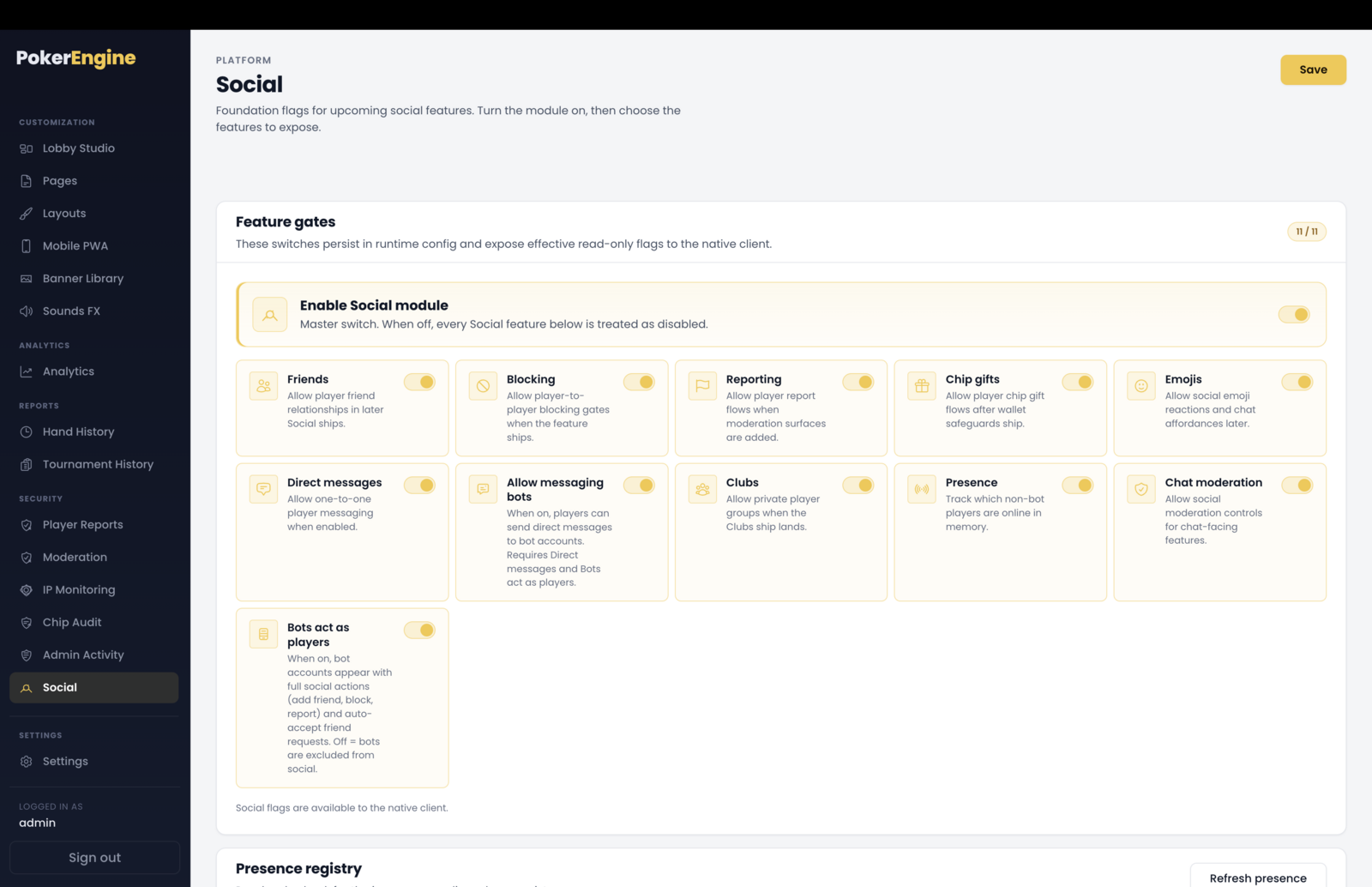
The Social section (under Security) is the control panel for your platform’s
social features. It’s a set of switches: a master switch that turns the whole social module on, and
individual toggles for each feature so you expose exactly what you want. Several of these switches also
enable features described in other sections (like Player Reports and chat moderation), so it’s worth
setting this up early.
By default the social features are off — turn on the ones you want.
The master switch
Enable Social module is the master gate. While it’s off, none of the social features are active,
even if their individual toggles are on. Turn it on first, then pick your features.
The features
Friends — players can send and accept friend requests. Powers the Friends, Friends-count and Who’s-online widgets.
Blocking — players can block others.
Reporting — lets players report each other. This is the switch that feeds your Player Reports queue — with it off, no new reports come in.
Chip gifts — players can send each other chips (amounts and daily limits are set in your server configuration).
Emojis — emoji reactions in chat.
Direct messages — private one-to-one messaging, in real time. Powers the Messages widget and the mobile Messages screen.
Allow messaging bots — lets players message bot accounts (only works when Direct messages and Bots act as players are also on).
Clubs — private player groups.
Presence — tracks which players are online, powering “who’s online” features.
Chat moderation — enables the profanity filter and, importantly, makes chat mutes actually take effect. (See the note below.)
Bots act as players — see below.
The Social switchboard — a master switch above the per-feature gates. Nothing is live until the master is on.
Bots in social (“Bots act as players”)
This toggle decides whether bots show up as social entities — whether players can add them as
friends, send them gifts, or report them (bot friend requests are auto-accepted). With it off, bots are excluded from
all social interactions. Note this is only about social features — it’s completely separate from how
bots play at your tables and from the include-bots options in Leaderboards and Ranking.
Presence panel
At the bottom, a read-only Presence panel shows how many players are currently online (bots are
never counted) — a quick health check that the presence system is working.
Good to know
The master switch wins. Flipping an individual feature on does nothing until Enable Social module is on.
Chat moderation must be on for mutes to work. You can chat-mute a player in the Moderation section, but the mute is only enforced while Chat moderation is enabled here — turn it on if you plan to use chat mutes.
Reporting powers Player Reports. Enable Reporting so players can submit reports for you to review.
These switches drive other parts of the app. The social sidebar widgets (Friends, Messages, Who’s-online) and the mobile menu’s social destinations (Notifications, Messages, Private tables) only appear when the matching feature is enabled here.
Fine-tuning limits. Friend-request and gift limits (amounts, daily caps) are configured in your server settings rather than on this page.
Ready to use. Every social feature is built and working — just flip the switches for what you want to offer.